The Secrets to Destroying All Data on a Disk or USB Flash Drive
by Howard Fosdick, 2025 © RexxInfo.org
Completely destroying all data on a disk is the only way to ensure that no personal data remains on that drive. This is referred to as wiping the drive.
You should definitely "wipe" a disk before you give away or recycle your old computer. This protects you in case any personal or sensitive data is on the drive.
You'll also want to completely wipe a drive if you accept a used computer or drive from someone else. That's the only way to be certain that no illegal software, films, or music reside on the drive. And, that it doesn't contain pornography or stolen data.
The bottom line is this -- whenever a disk or USB memory stick exchanges ownership, you should completely wipe all data from it.
That's the only responsible way to reuse it without physically destroying it. This article explains how to do this.
Here's the agenda --
What Works Depends on the Type of Disk
An Easy Solution: Encryption
How to Wipe a Solid State Drive (SSD)
How to Wipe a Hard Disk Drive (HDD)
How to Wipe USB Memory Sticks (aka Flash Drives)
Conclusion
Related Articles
What Will Not Work
People often think these actions will remove their personal data from a drive, but they're mistaken.
Do not rely on these methods:
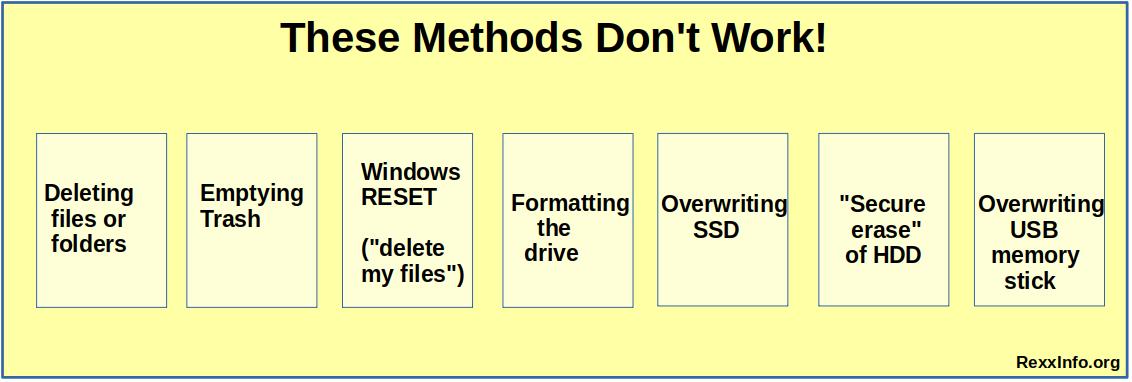
Let's discuss each option...
1. Deleting files or folders -- When you delete a file in Windows, macOS, or Linux, it only moves it to the Trash Bin. Windows, macOS, and Linux all provide easy tools to recover deleted files from the Trash.
2. Emptying the Trash Bin -- Emptying the Trash only removes a reference or "pointer" to that file on the disk. The data still resides on the drive (until the system decides to reuse that space).
All or some of the data can potentially still be recovered by any number of popular programs. (Examples include Recuva, TestDisk, EaseUS Data Recovery, and many others.)
3. Windows Reset with "delete my files" -- The tools I just mentioned can also often recover data after a Windows Reset, even if you told Windows to "delete my data".
4. Formatting a drive -- Sophisticated "forensic" tools can often retrieve data from a reformatted partition.
5. Overwriting a Solid State Disk (SSD) -- Overwriting an SSD it is not guaranteed to eliminate all data residing on the SSD. Nor is using a tool designed for wiping a hard disk drive (HDD).
6. Using an SSD data wiping program to destroy all data on an HDD -- SSD tools won't work to destroy all the data on an HDD.
7. Overwriting a USB flash drive -- USB flash drives are also known as USB memory sticks, thumb drives, or pen drives. They contain chip memory, much like SSDs.
Many web sources say you can simply overwrite a USB memory stick to delete all its data. That is not always true!
With most of them, if you merely overwrite the data -- like you would for an HDD -- you are not guaranteed to destroy all the data. I'll explain below.
What Works Depends on the Type of Disk
So, what does work? It depends on whether you intend to wipe an SSD, a USB flash drive, or an HDD.
SSDs and USB flash drives are chip based. In contrast, HDDs have magnetic media with a "arm" that moves across the media to read or write data.
This figure contrasts their designs:
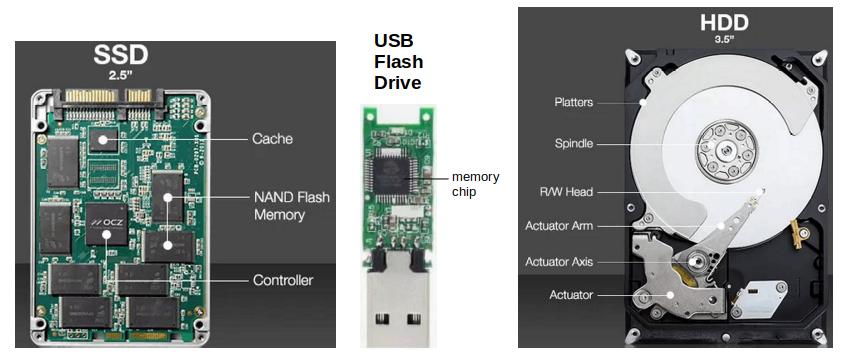
We will tell how to erase each type of disk in turn: SSDs, then HDDs, then USB flash drives.
But first, here's a quick trick that protects your data with all kinds of disks.
An Easy Solution: Encryption
If you're not interested in reading all this article, here's your TL;DR answer ...
If you set up a disk as encrypted prior to using it, you don't have to worry about someone accessing your data later when you recycle it or give it away. Unless they can break the encryption, your data is secure.
Just set up your disk (or all its partitions) for encryption before its first use. (For example, in Linux you would format the drive for LUKS encryption.)
Here's what I do. I only use encrypted drives and partitions. Just prior to recycling them, with the disk unmounted and in its encrypted state, I overwrite the entire disk with random data by one of the methods I'll describe below.
For a hard disk drive, this overwrites the entire disk. For solid state drives and USB flash drives, this overwrites almost all of the data. Those blocks that aren't overwritten remain encrypted.
This yields high assurance that the original data can never be accessed, regardless of the drive type.
How to Wipe a Solid State Drive (SSD)
Let's talk specifically about solid state disk drives. You erase SATA-connected and M.2 NVMe SSDs in the same way. You need to do what they call a secure erase.
Note that the erasing tools used for HDDs do not work for SSDs!
One reason is that SSDs don't always update a block of data in place. To reduce use of a specific location, they employ wear leveling. So if you update a block of data, the new block may be written elsewhere, while the original block remains on the disk and is simply marked off. So overwriting all blocks to new values won't necessarily overwrite all the data on the disk.
(Other SSD algorithms also cause simple overwriting to become ineffective.)
So, here are several different ways you can perform a secure erase:
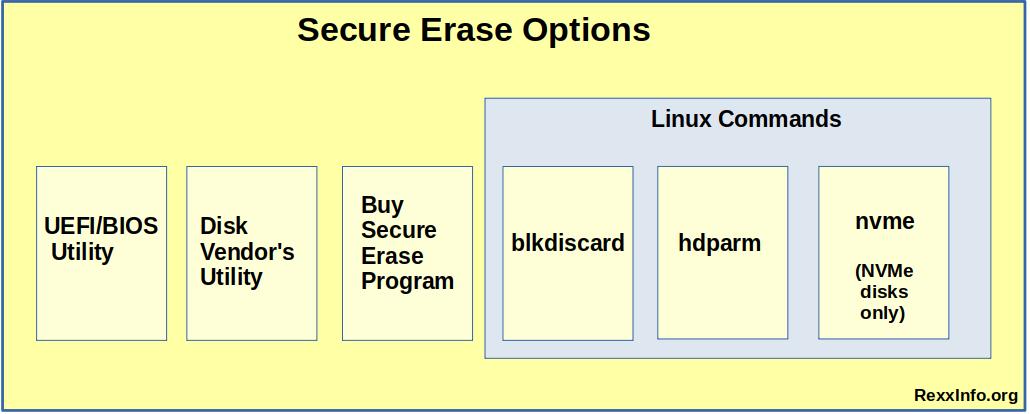
Let's now discuss each option...
1. UEFI/BIOS Utility -- Some computers come with a secure erase utility in their UEFI/BIOS configuration panels. All you have to do is access the boot configuration panels to run it. It will usually be labelled something like "ATA Secure Erase."
2. Manufacturer's Utility -- Some disk manufacturers offer free downloads of
secure erase utilities for their SSDs. Unfortunately, many vendors don't provide a secure erase utility for their consumer drives.
3. Buy a Secure Erase Program -- You could buy a program like Partition Magic to securely erase your drive. But as the following alternatives show, that's really not necessary.
4. Use the Linux BLKDISCARD command --
The Linux blkdiscard command discards blocks on SSD devices, and can zero out their data.
To use it, you'll boot a Linux that includes the blkdiscard command. (If you don't have Linux installed on your computer, you can boot a Linux distribution as a Live Linux. Here's how.)
You will use the root user id to perform these actions in a terminal window:
1. Get the name of the SSD device by issuing this command: lsblk
The name will be something like this: /dev/sda or /dev/sdb (I'll use a ? to represent the variable letter.)
Be very certain you have the correct disk name before proceeding, or you could wipe your data from the wrong disk!
2. Issue the blkdiscard command on that device:
blkdiscard -sv /dev/sd?The -s flag indicates to perform a secure discard, which ensures the discarded data can not be recovered. The -v flag stands for verbose, so that you get good command feedback.
5. Use the Linux HDPARM command --
Another way to manually direct the secure erasure of the drive by using the Linux hdparm command. (This assumes that the drive supports the ATA Secure Erase feature, which nearly all do).
To use hdparm, first you'll boot a Linux that includes the hdparm command. (If you don't have Linux installed on your computer, you can boot a Linux distribution as a Live Linux).
You will use the root user id to perform these actions in a terminal window:
1. Get the name of the SSD device by issuing this command: lsblk
The name will be something like this: /dev/sda or /dev/sdb (I'll use a ? to represent the variable letter.)
Be very certain you have the correct disk name before proceeding, or you could wipe your data from the wrong disk!
2. Check to ensure your SSD supports the ATA Secure Erase command by inspecting output from this command:
hdparm -I /dev/sd? | grep -i "Security"
A response of SECURITY ERASE UNIT will render the data invalid by rotating the device's security key.
A response of ENHANCED SECURITY ERASE UNIT will rotate the device's security key and also overwrite the data.
The output will also tell you how long each of these commands will take to run. Write those numbers down for later.
3. Now you want to make sure that the drive you want to erase is not in the frozen state. That is, it must be in the unfrozen state in order to accept your secure erase command. Issue this command to find out the drive's status:
hdparm -I /dev/sd? | grep -i "frozen"
If the drive is not frozen, this command will return not frozen. Otherwise, it will return frozen, and you must unfreeze it by putting the computer into a suspended state:
echo -n mem > /sys/power/state
Then wake the computer up by pressing the Enter key.
Now if you re-enter the command to see if the drive is frozen, it should return the value not frozen.
4. You have to set a password on the disk before you can wipe it, so set a new password for the drive by this command:
hdparm --user-master u --security-set-pass PASSWORD /dev/sd?
5. Perform the secure erase. I prefer the latter "enhanced" command if it's available:
hdparm --user-master u --security-erase PASSWORD /dev/sd?
--or--
hdparm --user-master u --security-erase-enhanced PASSWORD /dev/sd?
6. After you issue the secure erase command, control immediately returns to your terminal while the command runs in the background.
So now you must wait the amount of time you wrote down earlier to allow the command to complete the secure erase operation.
6. Use the Linux NVME command --
This option works only for NVMe drives. It's an alternative to the blkdiscard and hdparm commands.
1. First install the NVMe-CLI package and find the name of your NVMe drive:
apt install nvme-clinvme list --or-- lsblk
2. Next securely erase the drive. Replace /dev/nvmeXXX with your device name. The -s 1 flag erases all data, or may perform a cryptographic erase if the data was encrypted:
nvme format /dev/nvmeXXX -s 1
How to Wipe a Hard Disk (HDD)
You must wipe a hard disk drive using different means than you do for SSDs. Here are several different ways to wipe a hard disk drive:
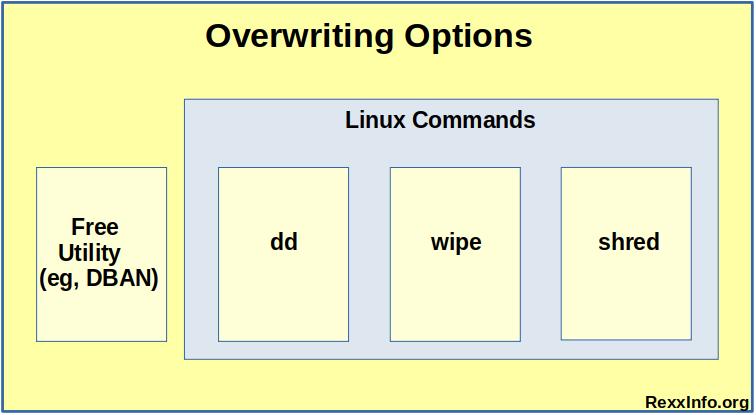
All these options destroy HDD data by overwriting the disk. Let's now discuss each option...
1. Download and run a free disk wiping tool -- I recommend this first option as easy, reliable,
flexible, and thorough.
Example free disk wiping programs include DBAN or its competitors. These programs boot on their own (independent of your normal operating system). They overwrite the entire disk and thereby destroy all its data.
Here's a screenshot of DBAN in action:
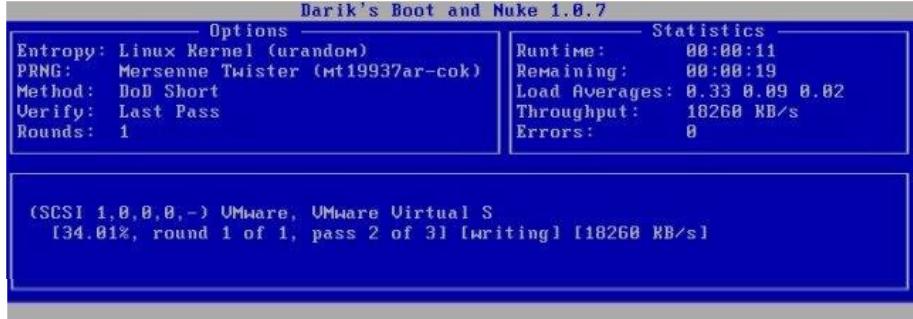
DBAN Wiping an HDD Disk (Courtesy: DBAN)
"Disk wiping" programs usually have a parameter that dictates either light wiping (faster) or more thorough wiping (slower).
To ensure your data is truly unretrievable, use the thorough settings. This overwrites the disk several times. That ensures there is no residual trace of the original magnetic patterns of the data you're trying to destroy.
The program could run for hours -- it depends on your disk's size and speed, and how many times you tell the program to overwrite the disk. I find it convenient to run a thorough wipe unattended overnight.
2. Linux Line Commands --
Instead of a disk wiping program, you could use any of several different Linux line commands to overwrite a disk. Examples follow. In all cases, you should execute them as the root user id.
(If you don't have Linux installed on your computer, you can boot a Linux distribution as a Live Linux. Here's how.).
For a thorough wipe that eliminates any traces of the original data's magnetic imprint, you may wish to use these commands to overwrite more than once.
If you're wiping your computer's boot drive, boot a Live Linux from which to issue your overwriting command on your boot drive.
2.1 DD Command --
You can use the Linux line command dd to wipe a drive. These two examples show how to use the dd command to write either zeroes or random data to a drive named sd? (be sure to replace the ? with the proper drive letter):
dd if=/dev/urandom of=/dev/sd? bs=1M status=progress
if is the input file name, and of is the output file (in this case the disk you wish to wipe).
The special input file /dev/zero will automatically generate zeroes, while /dev/urandom generates random numbers. I prefer the latter to better wipe a disk.
bs stands for the block size or the number of bytes to write at a time. To speed the operation, you'll want to use some value larger than the default of 512 bytes. (That would make for a very slow overwrite operation!) These examples write 1 Megabyte at once.
You'll know that dd has successfully concluded when it returns this message to your terminal: “No space left on device” .
2.2 WIPE Command --
The wipe command securely erases either a disk or a partition. You may have to install it for most Linux distributions.
Ensure the disk partitions are unmounted, then issue the wipe command. The operand sd? points to the drive or partition to wipe, while the flag -v stands for verbose feedback:
wipe -v /dev/sd?
wipe can take a long time to run because its default makes many passes. To speed it up, you can usually reduce the number of overwrites with either the -n or -Q flags. These examples make only 2 passes:
wipe -v -Q 2 /dev/sd?
2.3 SHRED Command --
The shred command can wipe data from a drive:
sync
The -v flag means verbose, while the parameter after -n tells how many times to overwrite the data. This example overwrites the disk 5 times (the default is 3). sync ensures all data is written to the disk to synchronously complete the operation.
You most often see shred run against a file or group of files. That usage would not obliterate all data from a disk. For example, journaled filesystems like EXT4 and XFS may retain copies of data that shred does not eliminate.
This example wipes all the files in the directory against which it is run. The -u flag deallocates and removes the file after overwriting:
sync
How to Wipe USB Memory Sticks
USB memory sticks are chip-based memory, much like SDDs.
Many use wear-leveling techniques like SSDs -- but not all.
For those that use wear-leveling algorithms, the most thorough way to wipe a USB stick would be to use the same secure erase techniques we presented above for SSDs.
Unfortunately, manufacturers consider thumb drives disposable consumer items. So most thumb drives don't support the SSD commands for secure erasure.
You can check by entering the SSD blkdiscard and hdparm commands against the memory stick and viewing the results. If you get error messages like these, you know the thumb drive does not support secure erase commands:
bad/missing sense data
Because of this limitation, most sources on the web advise you to overwrite the memory stick, just like you would an HDD.
But for USB sticks with wear-leveling or related algorithms, this is not guaranteed to be 100% effective! There could be blocks of residual data on the drive that do not get overwritten, just as with an SSD.
Therefore, if you have really secure data you're trying to protect, I'd advise only using a thumb drive as an encrypted partition.
If you ever want to give it away, ensure it's unmounted and in its encrypted state. Then use overwriting commands to obliterate it. If any blocks survive the blitz, they're still encrypted and thus unreadable.
Or you could just physically destroy the drive.
To do this, pry off the plastic covering with a pen knife. Then smash the device with a hammer, taking special care to destroy the memory chip(s).
Conclusion
Don't fall into the trap of thinking that deleting files, reformatting the disk, or invoking Windows Reset with Delete My Data will obliterate your data from a disk. This article has told you how to securely erase any drive or USB flash drive.
Now you can keep a drive in service when giving it away or recycling it -- with complete assurance that its data has been obliterated -- instead of physically destroying the drive.
And if you receive a drive from someone else, you know how to ensure that drive is truly clean before you put it to use.
Related Articles
How to Secure Your Home Wireless Network
How to Get 100% Availability for Your Home Office
Fixing / Refurbishing Computers --
The Ultimate Guide to Computer Refurbishing
How to Refurbish Old Single Core Computers
How to Get a Free Computer
Linux --
Linux Performance Tips
How to Upgrade Linux PC Hardware
How to Identify Linux Performance Bottlenecks
Reclaim Big Disk Space by File Conversions
How to Shrink PDF Files
How to Traverse Directories in Scripts
How to Use PUSHD and POPD
Bash to Python Mapping & Comparison
All About Scripting Languages
-----------------------------------
====> Like this article? Spread the link love to Slashdot, LXer, or your favorite social media.